Showing posts with label Tutorials. Show all posts

How To Record PC Gameplay On Windows 10

How To Record PC Gameplay On Windows 10
While using Xbox app on Windows 10, it allows you to record your favorite moments in game effortlessly. Here, you can take screenshots, capture clips, record PC games, trim them and even share them with your family & friends. It gives you freedom from buying extra recording gear. It allows you to share your clips on social media accounts and on Xbox Live.
Don't Miss: Get Ready Or Optimize Windows 10 For PC Gaming

Record What Just Happened:

Windows 10 allows you to record what recently happened during the game. Here, you can record last 30 seconds of your running game. To do this, first launch your game and press Windows logo key + G keys on your system keyboard to open Game Bar. Now choose the Settings > Record Game in the Background. To quickly record last 30 seconds game simply press Windows logo key + Alt + G while Game Bar running in the background. Here, last 30 seconds of game will be saved as game clip.

Record What’s Happening:

Apart from last 30 seconds recording, you can also record what is happening during game. Here, you need to press Windows logo key + Alt + R keys to start a recording. You need to press same button once recording is completed. Here, you will see a screen flash when you start recording or end it.

If you can’t record game using these shortcuts then go to game’s Settings and check for the option to run the game in a window. Now when game is running in a window, press Windows logo key + G and choose “Yes, this is a game” option. Now it will allow you to use shortcuts when the game is full-screen again. This built-in feature works as a great game recorder software feature to reduce your manual efforts.

Trim To The Best Parts:

Now when you have game recording, you can even trim your favorite parts to store. Here, you can highlight the best parts of the game or focus on a specific moment by trimming it in the Xbox app. To do this, open the Xbox app on your Windows 10 system and choose Game DVR option. To find all recordings done through Game bar you need to go to “On this PC”.
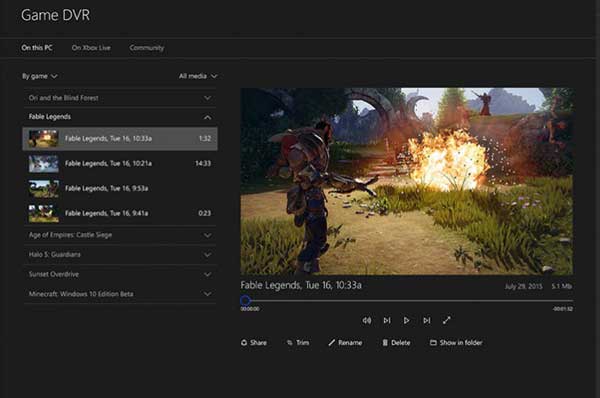
How To Record PC Gameplay On Windows 10

Share It With Your Friends:

The best part of the recording process is, you can share your favorite recordings with your friends and family easily. It allows you to share your recording clips and other screenshots on different networks and platforms. To do this, select “Open folder” option to view all your recordings. Now simply select the files and upload them to your favorite social media platform. You can even directly share it with your friends.

Further, you can share your clips directly on Xbox Live, to do this simply click on “Share” to upload it to Xbox Live. Here based on your privacy settings your friends and family can enjoy the clips. You can view all shared stuff when you sign in to Xbox on other devices.

Conclusion

Its great idea to capture moments of your favorite game on your Windows 10 system. Here, it not only allows you to capture recordings but it even helps you trim favorite shots and share them on a social media platform. You can use built-in feature on Windows 10 to enjoy all this.

How To Edit Scanned Documents In Three Steps

How To Edit Scanned Documents In Three Steps
Edit Scanned Documents In Three Steps
Twenty years ago, our office desks were swamped with paper documents. Financial projections, reports, meeting notes - you name it, we stored it in paper format. The technological inventions of the early ‘90s played a great role in coining a term that will eventually escort paper from our offices - paperless productivity. We instantly picked up on it, and it has been changing our lives ever since.

However, if you look around your office, you will most likely notice paper documents scattered around, which means that we haven’t gotten rid of them completely.

Even though we couldn’t get rid of the notes, paperless productivity undoubtedly prompted us into storing old paper documents on our computers. We do that by scanning and exporting them into PDF. Thanks to its file security features, PDF has served its purpose as a digital file cabinet literally from its introduction in 1992. Unfortunately, the problem with the PDF is that it is not editable by default. For example, you scanned a yearly report and saved it on your computer. The time has now come to reuse certain points from that document, but you cannot unlock it. To do this, you need software that supports Optical Character Recognition (OCR) technology - an advanced technology that reads text from images and transforms them into an editable digital format.

If you are dealing with lots of scanned files containing sensitive private and business information, the only safe option is a high quality desktop OCR PDF converter, which costs money. But sometimes it is fine to use an online converter, especially when you’re not dealing with classified information. One of the tools that will help you get the text out of scanned PDF into editable Word document is Investintech’s free online PDF OCR.

With this tool, you can extract text from a scanned PDF in just 3 simple clicks:

1. Select the PDF that you would like to convert.

Edit Scanned Documents In Three Steps
2. Type in your email address, to which the converted file will be delivered.

Edit Scanned Documents In Three Steps
3. Click “Start” to convert your document.

Edit Scanned Documents In Three Steps
It should also be noted that with Investintech’s online PDF OCR you can convert any number of scanned files of any size (there is no file size limit). This means that you can utilize advanced OCR technology as much as you like and get one step closer to complete paperless productivity.

How To Manage Saved Password In Chrome, Firefox, Opera And IE

How To Manage Saved Password In Chrome, Firefox, Opera And IE
Manage Saved Password In Chrome, Firefox, Opera And IE

Modern browsers have modern and advanced features. In 1990s, when the internet started then Mosaic was introduced as a first internet browser. At that time, there were no any other to surf the internet. When Mosaic released then this was a very basic and simple browser. No any feature and design were there in it. But today's advanced browsers like Chrome, Firefox, Opera and Internet Explorer are different and they have lots of features and hidden stuff that are very helpful.

I'm talking about Google Chrome, Mozilla Firefox, Opera and Internet Explorer here. These are some most highlighted browsers today. Most users use them and prefer also. These are all popular because of the features, support and their benefits. In such features, these browsers also provide an advanced opportunity to save your password; not to be confused with an SSO option.

Whenever, you open your facebook, twitter or any social account then after typing a password, it asks to save your password in the browser. When you click on save option then your password is saved automatically. People save their Passwords but they don't know, how can they check saved passwords in the browser. So considering this issue, today I shared this article especially for those users, who are suffer from this problem. You could be easily check and also delete saved password after following below steps.

In Google Chrome

Almost 1 billion users use Google Chrome as default. So, if you're also a Chrome user then you should know about the saved password. To check the saved password in Google Chrome, go to the setting or type chrome://settings  in URL bar and press Enter.

Manage Saved Password In Chrome, Firefox, Opera And IE
After that, your chrome's setting will be opened. Now scroll down to the end and then click on 'Show Advanced Setting'.

Manage Saved Password In Chrome, Firefox, Opera And IE
Once you have click on 'Show Advanced Setting' then immediately below, the 'Passwords and forms' section will be showing. So, click on 'Manage passwords' option to manage your all saved password in Chrome.

Manage Saved Password In Chrome, Firefox, Opera And IE
When you have done then a popup kind of windows will be opened where your saved password will be displaying. So, can remove or check your password if you forget. Actually, I didn't save passwords in Chrome. That's why, I can't show any image for your convenience.

In Mozilla Firefox

On top of the right corner, click on the menu option. When drop down menu is open then go to the 'Options'.

Manage Saved Password In Chrome, Firefox, Opera And IE
When you have done then a dialog box will open like below image. Here go to the 'Security' and click on the option of 'Saved Passwords'.

Manage Saved Password In Chrome, Firefox, Opera And IE
Once you click on this option then another menu will open. Where your all saved passwords will be shown in a list. Here you can manage, delete and can show as your wish.

In Opera

Opera is another light browser, as compared with Chrome and Firefox. To manage passwords in Opera, go to the settings. On top of the left corner, an option of Opera is available. When you will click on it then a drop down menu will open. Here click on the option of 'Setting'.

Manage Saved Password In Chrome, Firefox, Opera And IE
Once you enters in the setting, then immediately below the search setting option, four option are present. In which, click on 'Privacy & security' and open it.

Manage Saved Password In Chrome, Firefox, Opera And IE
When you click on it, then in the menu of 'Passwords', an option 'Manage saved password' is available. So, click on this option and check your saved passwords. Here you can see and also can remove or delete your all saved passwords easily.

Manage Saved Password In Chrome, Firefox, Opera And IE

In Internet Explorer

To manage passwords in Internet Explorer, on the top of the right corner, click on the Setting icon. A drop down menu open, here click on 'Internet options'.

Manage Saved Password In Chrome, Firefox, Opera And IE
After that, a dialog bar will open. Here go to the 'Content' and then go to the 'Setting'.

Manage Saved Password In Chrome, Firefox, Opera And IE
Once you have done then another bar will open. Here 'Manage Passwords' open will show exactly above on 'Delete autocomplete history'. Actually, I didn't update my internet explorer. That's why, this option is not available. But if you have an updated IE then this option will definitely show. So, click it and then manage your all saved passwords in Internet Explorer.

Last Thoughts

These are some simple steps to manage your saved passwords in Chrome, Firefox, Opera and Internet Explorer. You can manage and check your saved passwords by following above steps. But if you know about another simple ways to save passwords in Browser then share with us and readers via comment below. If think, it's a helpful article then don't forget to share it with others.

How to Record Desktop Using VLC Media Player

Record Desktop Using VLC Media Player
Sometimes you may want to record and capture your activity on your entire computer screen in order to share it with other one or for any other reason. Suppose that you are facing a problem on your computer and want to show the problem to an expert In order to get help of, or suppose you want to teach someone to fix a problem on their computer for which you need to record your computer’s screen and then let he/she watch and solve their problem.

If this is the case with you or may have some other reason in which you need to record your screen. I would like to say that you employ the VLC media player to record your desktop without installing other screen recording software on your computer because that will slows down your computer performance.

For your info, VLC media player is developed by the video lab team which has the ability of playing files with almost all known audio and video formats either on your computer or on mobile(now VLC is available for android). Someone may say that these can also be done with other media players but the VLC media player has some features that make it pretty much useful and different. Some examples are, you can use VLC player to rotate a video, watch youtube videos, cut videos using VLC and few other.

In this post, we will be discussing that how you can use VLC media player to record your desktop which is a good feature seen in VLC media player. So let get started.

How To Use VLC Media Player To Record Screen?

In order to record your pc screen. Please follow the below instructions.

Step #1

Open the VLC media player. And click on 'Media' tab from the menu bar and select the 'Open Capture Device' from the drop-down list.

Step #2

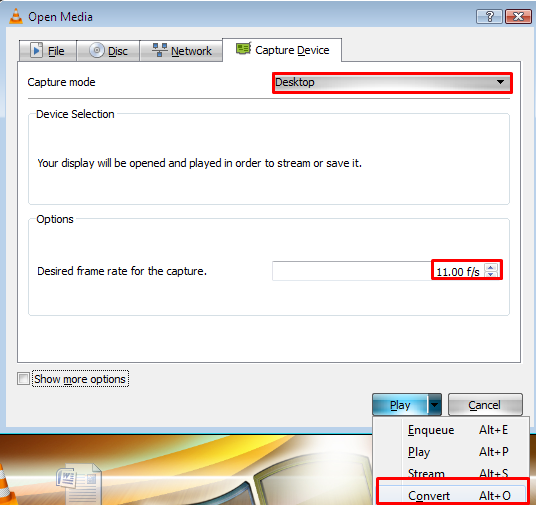
A new window pop-ups, now you’ve to select the ‘Desktop’ from the Capture Mode. Also increase the frame rate to 10.00 below. After that, click on play arrow and select the Convert. (see screenshot for better understanding)
Record Desktop Using VLC Media Player

Step #3

Now a new window appears, where you have to click on 'Create new profile' button presented at the front of profile. Now enter a profile name in the box at the top and select the third option (mp4/mov) under Encapsulation and click on create button at the bottom.
Record Desktop Using VLC Media Player
Also click on browse button to give a destination file where the record will have to save. After clicking on browser button, give a name ends with .mp4 (Must), i.e my video.mp4.

Now your screen recorder is ready and you will be able to record your screen just by clicking on START button and minimize the VLC media player. The VLC is recording you screen. Do the work that you want the VLC to record. To stop the recording, just close the VLC player. You will see your recorded file at the destination place which you specified earlier, you can play that in any player so play it and check your recording.

So, dear readers, this was an easy trick on how to use VLC media player to record your entire screen. I hope the post was helpful for you and you liked it.

One thing is need to be in your notice that the VLC is not able to record your voice from any device. In particular, It only allow you to play song or any other media file in background which can be done by clicking on 'show more options' in step-1. Make tick mark on 'play other media synchronously' browse a media file you want to be in background. Then proceed as discussed above.

AUTHOR_NAMEAbout the Author:
Basheer Ahmad is a computer geek who loves to learn and share something useful about pc with others. He also loves to write about technology and internet.
Find Me On Facebook